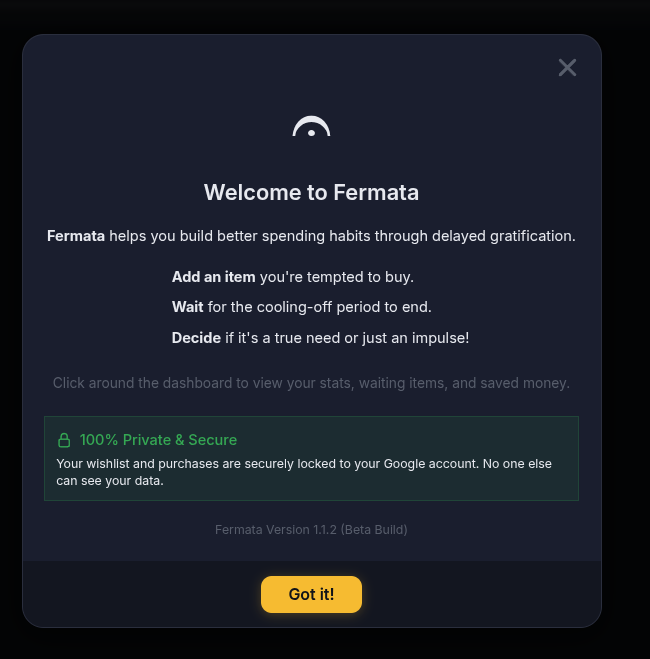
Welcome to Fermata
In music, a fermata instructs the performer to pause and hold a note longer than usual. In a world of instant gratification and algorithmic urgency, Fermata brings that same principle to your spending habits.
This app is not about deprivation. It is about alignment. By introducing mindful wait periods, tracking recurring expenses, and rewarding patience through Progression Mode, Fermata helps you transform impulsive wants into intentional investments.
The Philosophy of Fermata
Fermata operates on three foundational pillars:
| Pillar | Description |
|---|---|
| Mindful Delay | Impulse fades with time. Wait periods create space between desire and decision, allowing your rational mind to catch up with emotional triggers. |
| Progression & Discipline | Patience is a skill. Progression Mode gamifies restraint, rewarding consistency with Skip Tokens and higher discipline tiers. |
| Financial Transparency | Visibility breeds control. By tracking subscriptions and analyzing spending patterns, you reclaim agency over your financial ecosystem. |
Core Features
-
📋 The Wishlist
Your central hub for intentional purchasing. Every item added enters a customizable Wait Period (default: 7 days). Once the period expires, you can approve, discard, or extend the wait.
-
📖 Flipboard UI
Designed for calm interaction. The Flipboard interface presents each item as a tactile card. Front showcases countdowns and prices; back reveals detailed notes, alternative options, and decision actions. Swiping controls extend or discard items smoothly.
-
📂 Multiple Lists & Categorization
Organize your desires by context. Create separate lists such as Home, Tech, Travel, or Hobbies. Use priorities, categories, and custom hashtag labels to keep your mental space completely clutter-free.
-
📈 Progression Mode
Turn patience into progress. Tracks discipline over time with a leveling system (earn XP by completing waits), streaks, and Skip Tokens (earned milestone rewards utilized to bypass wait times for genuine time-sensitive emergencies).


-
💳 Subscription Tracking
Identify and manage recurring expenses that quietly drain your budget. Log active billing frequencies, auto-renew alert timelines, and mark services as "Cash Bleed" to flag cumulative waste.
-
📊 Dashboard Analytics
A visual command center for financial mindfulness featuring Success Rates (approvals vs discards), Monthly Spending Heatmaps, Cumulative Burn Rates, and real-time Discipline Scores.
Step-by-Step Guides
Adding Wishlist Items
- 1. Open Form Tap the visual `+` button on the Dashboard or within any List.
- 2. Detail Desires Enter the Item Name, Estimated Price, Categories, Priority levels, and custom Tags.
- 3. Configure Wait Set the cooling-off wait time (default: 7 days) and input alternative options to help with reflection.
- 4. Start Countdown Tap `Save & Start Wait` to log the item in active lists with a running real-time countdown.
Using Skip Tokens
- 1. Select Pending Item Navigate to any wishlist item inside the active countdown phase.
- 2. Access Timer Controls Tap the active `⏳` timer badge on the card face.
- 3. Bypass Countdown Select `Use Skip Token` and confirm. The wait timer immediately expires and the item is made ready for instant approval.
Tracking Cash Bleed Subscriptions
- 1. Navigate to Subscriptions Click the Subscriptions icon in the desktop sidebar or mobile bottom bar and tap `+ Add Subscription`.
- 2. Set Parameters Enter recurring details, pricing, cycle interval, and renewal billing dates.
- 3. Highlight Cash Bleed Toggle the `Mark as Cash Bleed` option if the service is under-utilized to help you cut waste.
Archiving Items
- 1. Choose Item Card Tap any item to flip the card, or open the detailed context menu.
- 2. Pick Decision Status Select `Archive` and choose your decision: *Approved & Purchased*, *Discarded*, or *On Hold*.
- 3. Track Long-term Analytics The item moves out of active views into the Archive, feeding dashboard analytics.
Pro Tips & Mindful Habits
- Start Small & Scale Wait Begin with a 3-day waiting period. Gradually scale to 7 or 14 days as your long-term Discipline Score increases.
- Quarterly Cash Bleed Audits Cancel or downgrade services marked as Cash Bleed. Re-route those funds directly to purchase waitlisted items.
- Reflective Weekly Card Flips Establish a weekend habit to flip wishlist cards. Reflected impulse fades dramatically over consecutive card audits.
- Save Skip Tokens for Flash Needs Do not spend Skip Tokens on whim convenience. Reserve them exclusively for genuine time-sensitive flash opportunities.
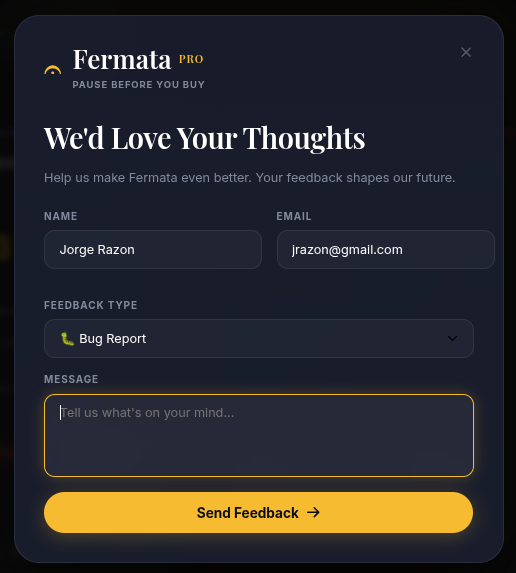
Support & Feedback
Fermata is continuously evolving. Your experience shapes our roadmap.
- In-App Help: Tap **Support & Feedback** in the sidebar or bottom bar to trigger the premium glassmorphic modal instantly.
- Bug Reports: Log issues directly via the modal. The system automatically compiles critical diagnostic details (version, screen resolution, timezone location, OS, device info, platform) to aid developers.
- Feature Requests: Submit ideas and feedback directly to the team under `Feature Request`.